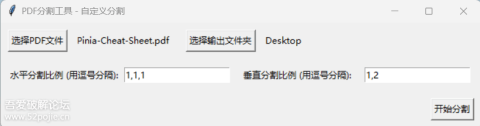
一个可以分割测试的小工具 网盘链接:https://pan.baidu.com/s/1E-Whm0uw9kfUvgWckqbzYQ?pwd=5261
[code]import os
import sys
import logging
import subprocess
from tkinter import Tk, Button, Label, Frame, filedialog, messagebox, simpledialog, Text, Scrollbar, END, LabelFrame, Toplevel
from tkinter import IntVar, StringVar
from tkinter import ttk
from PIL import Image, ImageTk
from datetime import datetime
class ImageSplitterApp:
def __init__(self, root):
self.root = root
self.root.title("图片分割工具 - 泠眸制作")
self.root.geometry("800x800") # 调整窗口大小
# 初始化变量
self.progress_var = IntVar()
self.log_var = StringVar()
self.max_grid_size = 10
self.current_output_dir = None # 记录当前输出目录
# 创建界面
self.create_widgets()
# 初始化日志
logging.basicConfig(
level=logging.INFO,
format='%(asctime)s - %(levelname)s - %(message)s',
filename='image_splitter.log',
filemode='a'
)
self.log_message("程序启动")
def create_widgets(self):
# 主框架
main_frame = Frame(self.root)
main_frame.pack(fill='both', expand=True, padx=10, pady=10)
# 左侧面板 - 功能操作区
left_panel = Frame(main_frame, width=450)
left_panel.pack(side='left', fill='y', padx=5, pady=5)
# 标题和作者
title_frame = Frame(left_panel)
title_frame.pack(fill='x', pady=5)
Label(title_frame, text="图片分割工具", font=('微软雅黑', 18, 'bold')).pack()
author_frame = Frame(title_frame)
author_frame.pack()
author_label = Label(author_frame, text="作者: 泠眸", fg="blue", cursor="hand2", font=('微软雅黑', 10))
author_label.pack(side='left', padx=5)
ttk.Button(author_frame, text="捐赠支持", command=self.show_donate, width=10).pack(side='left', padx=5)
# 使用说明
self.create_instructions(left_panel)
# 分割方式分类
self.create_split_methods(left_panel)
# 操作按钮区域
self.create_action_buttons(left_panel)
# 进度条
progress_frame = Frame(left_panel)
progress_frame.pack(fill='x', pady=10)
self.progress_bar = ttk.Progressbar(progress_frame, variable=self.progress_var, maximum=100, length=400)
self.progress_bar.pack(fill='x')
# 右侧面板 - 日志显示
self.right_panel = Frame(main_frame)
self.right_panel.pack(side='right', fill='both', expand=True)
# 日志文本框
self.log_text = Text(self.right_panel, height=28, wrap='word', font=('Consolas', 10))
scrollbar = ttk.Scrollbar(self.right_panel, command=self.log_text.yview)
self.log_text.configure(yscrollcommand=scrollbar.set)
scrollbar.pack(side='right', fill='y')
self.log_text.pack(side='left', fill='both', expand=True)
self.log_text.configure(state='disabled')
def create_instructions(self, parent):
"""创建使用说明区域"""
instr_frame = LabelFrame(parent, text="使用说明", padx=10, pady=10, font=('微软雅黑', 10))
instr_frame.pack(fill='x', pady=10)
instructions = """
1. 支持的图片格式: JPG/PNG/BMP/JPEG
2. 选择分割方式后,点击"选择图片目录"按钮
3. 选择目录后自动开始分割图片
4. 分割后的图片保存在原目录下的
"SplitImages/分割尺寸_原文件名/" 文件夹中
5. 自定义分割最大支持10x10
6. 处理完成后可使用"打开输出目录"按钮进行查看分割后的图片"""
Label(instr_frame, text=instructions, justify='left', anchor='w',
font=('微软雅黑', 9)).pack(fill='x')
def create_split_methods(self, parent):
"""创建分割方式选择区域"""
method_frame = LabelFrame(parent, text="分割方式", padx=10, pady=10, font=('微软雅黑', 10))
method_frame.pack(fill='x', pady=10)
# 水平分割
h_frame = Frame(method_frame)
h_frame.pack(fill='x', pady=5)
Label(h_frame, text="水平分割:", width=8, anchor='w', font=('微软雅黑', 9)).pack(side='left')
ttk.Button(h_frame, text="2x1", command=lambda: self.set_grid_size((2,1))).pack(side='left', padx=2)
ttk.Button(h_frame, text="3x1", command=lambda: self.set_grid_size((3,1))).pack(side='left', padx=2)
ttk.Button(h_frame, text="4x1", command=lambda: self.set_grid_size((4,1))).pack(side='left', padx=2)
# 垂直分割
v_frame = Frame(method_frame)
v_frame.pack(fill='x', pady=5)
Label(v_frame, text="垂直分割:", width=8, anchor='w', font=('微软雅黑', 9)).pack(side='left')
ttk.Button(v_frame, text="1x2", command=lambda: self.set_grid_size((1,2))).pack(side='left', padx=2)
ttk.Button(v_frame, text="1x3", command=lambda: self.set_grid_size((1,3))).pack(side='left', padx=2)
ttk.Button(v_frame, text="1x4", command=lambda: self.set_grid_size((1,4))).pack(side='left', padx=2)
# 网格分割
g_frame = Frame(method_frame)
g_frame.pack(fill='x', pady=5)
Label(g_frame, text="网格分割:", width=8, anchor='w', font=('微软雅黑', 9)).pack(side='left')
ttk.Button(g_frame, text="2x2", command=lambda: self.set_grid_size((2,2))).pack(side='left', padx=2)
ttk.Button(g_frame, text="3x3", command=lambda: self.set_grid_size((3,3))).pack(side='left', padx=2)
ttk.Button(g_frame, text="4x4", command=lambda: self.set_grid_size((4,4))).pack(side='left', padx=2)
# 自定义分割
c_frame = Frame(method_frame)
c_frame.pack(fill='x', pady=5)
ttk.Button(c_frame, text="自定义分割 (最大10x10)", command=self.custom_grid_size).pack(fill='x')
def create_action_buttons(self, parent):
"""创建操作按钮区域"""
action_frame = LabelFrame(parent, text="操作", padx=10, pady=10, font=('微软雅黑', 10))
action_frame.pack(fill='x', pady=10)
# 开始处理按钮
ttk.Button(action_frame, text="选择图片目录", style='Accent.TButton',
command=self.start_processing).pack(fill='x', pady=5)
# 打开输出目录按钮
ttk.Button(action_frame, text="打开输出目录",
command=self.open_output_dir).pack(fill='x', pady=5)
# 其他功能按钮
btn_frame = Frame(action_frame)
btn_frame.pack(fill='x', pady=5)
ttk.Button(btn_frame, text="显示/隐藏日志", command=self.toggle_log).pack(side='left', fill='x', expand=True, padx=2)
ttk.Button(btn_frame, text="关于", command=self.show_about).pack(side='left', fill='x', expand=True, padx=2)
def set_grid_size(self, grid_size):
"""设置分割尺寸"""
self.current_grid_size = grid_size
self.log_message(f"已选择分割尺寸: {grid_size[0]}x{grid_size[1]}")
def toggle_log(self):
"""切换日志显示/隐藏"""
if self.right_panel.winfo_ismapped():
self.right_panel.pack_forget()
else:
self.right_panel.pack(side='right', fill='both', expand=True)
def log_message(self, message):
"""记录日志信息"""
logging.info(message)
self.log_text.configure(state='normal')
self.log_text.insert(END, f"{datetime.now().strftime('%Y-%m-%d %H:%M:%S')} - {message}\n")
self.log_text.see(END)
self.log_text.configure(state='disabled')
def split_image_into_grid(self, image_path, output_folder, grid_size):
"""将单张图片分割成网格"""
try:
with Image.open(image_path) as img:
width, height = img.size
tile_width = width // grid_size[0]
tile_height = height // grid_size[1]
for i in range(grid_size[1]):
for j in range(grid_size[0]):
left = j * tile_width
upper = i * tile_height
right = left + tile_width
lower = upper + tile_height
tile = img.crop((left, upper, right, lower))
output_path = os.path.join(
output_folder,
f'{os.path.splitext(os.path.basename(image_path))[0]}_tile_{i+1}_{j+1}.png'
)
tile.save(output_path)
self.log_message(f"已保存: {os.path.basename(output_path)}")
self.progress_var.set(((i + 1) * 100) // grid_size[1])
self.root.update_idletasks()
return True
except Exception as e:
self.log_message(f"分割图片 {os.path.basename(image_path)} 时出错: {str(e)}")
return False
def process_images(self, directory_path, grid_size):
"""处理目录中的所有图片"""
if grid_size is None:
messagebox.showwarning("警告", "请先选择分割方式!")
return
image_files = [f for f in os.listdir(directory_path)
if f.lower().endswith(('.png', '.jpg', '.jpeg', '.bmp'))]
total_images = len(image_files)
if total_images == 0:
messagebox.showerror("错误", "所选目录中没有图片文件!")
self.log_message("错误: 所选目录中没有图片文件")
return
self.log_message(f"开始处理目录: {directory_path}")
self.log_message(f"找到 {total_images} 张图片")
self.log_message(f"使用分割尺寸: {grid_size[0]}x{grid_size[1]}")
self.progress_var.set(0)
success_count = 0
for idx, image_file in enumerate(image_files):
image_path = os.path.join(directory_path, image_file)
output_folder = os.path.join(
directory_path,
"SplitImages",
f"{grid_size[0]}x{grid_size[1]}_{os.path.splitext(image_file)[0]}"
)
os.makedirs(output_folder, exist_ok=True)
self.log_message(f"\n处理图片: {image_file}")
if self.split_image_into_grid(image_path, output_folder, grid_size):
success_count += 1
self.progress_var.set(((idx + 1) * 100) // total_images)
self.root.update_idletasks()
self.progress_var.set(0)
message = f"\n处理完成! 成功分割 {success_count}/{total_images} 张图片"
messagebox.showinfo("完成", message)
self.log_message(message)
self.log_message(f"分割后的图片保存在: {os.path.join(directory_path, 'SplitImages')}")
# 记录当前输出目录
self.current_output_dir = os.path.join(directory_path, "SplitImages")
def start_processing(self):
"""开始处理流程"""
if not hasattr(self, 'current_grid_size') or self.current_grid_size is None:
messagebox.showwarning("警告", "请先选择分割方式!")
return
directory_path = filedialog.askdirectory(title="选择包含图片的目录")
if directory_path:
self.process_images(directory_path, self.current_grid_size)
def open_output_dir(self):
"""打开输出目录"""
if self.current_output_dir and os.path.exists(self.current_output_dir):
try:
if os.name == 'nt': # Windows
os.startfile(self.current_output_dir)
elif os.name == 'posix': # macOS/Linux
subprocess.run(['open', self.current_output_dir] if sys.platform == 'darwin'
else ['xdg-open', self.current_output_dir])
self.log_message(f"已打开输出目录: {self.current_output_dir}")
except Exception as e:
messagebox.showerror("错误", f"无法打开目录: {str(e)}")
self.log_message(f"打开目录失败: {str(e)}")
else:
messagebox.showwarning("警告", "尚未处理任何图片或输出目录不存在!")
self.log_message("警告: 输出目录不存在")
def custom_grid_size(self):
"""处理自定义分割尺寸"""
custom_size = simpledialog.askstring(
"自定义分割尺寸",
f"输入分割尺寸 (例如: 2x3, 最大 {self.max_grid_size}x{self.max_grid_size}):",
parent=self.root
)
if custom_size:
try:
rows, cols = map(int, custom_size.lower().split('x'))
if 1 |




 立即注册
立即注册 登录
登录